In the previous post, How to Secure Ubuntu 24.04 on a RackNerd KVM VPS , we covered the following:
- Enabling 2FA on the VPS provider account and control panel.
- Logging in as root once, then updating, upgrading, and rebooting the system.
- Creating a non-root sudo user.
- Setting up SSH key authentication and disabling password login.
- Disabling root SSH login.
- Setting the server timezone.
- Enabling unattended security updates.
- Configuring UFW to allow SSH, HTTP, and HTTPS while denying all other inbound traffic.
- Installing and tuning Fail2Ban, with a 3-hour ban time.
- Running YABS to benchmark the VPS and save a baseline.
The idea was simple: secure first, deploy later. Now that the server is locked down, it’s time to put it to work.
In this post, we’ll install Docker, set up a clean folder structure for backups, point a domain to Cloudflare, and deploy our first two self-hosted services — n8n and Caddy — behind a proper reverse proxy with automatic HTTPS. By the end, you’ll have a production-ready workflow automation tool running securely on your own VPS.
Let’s get into it.
Install Docker
For this setup, I’ll be using Docker to manage applications easily and consistently.
The official Docker docs for installing the Docker Engine on Ubuntu are already clear and straightforward, so I’ve listed the exact steps here for convenience.
Add Docker’s official GPG key:
sudo apt update
sudo apt install ca-certificates curl
sudo install -m 0755 -d /etc/apt/keyrings
sudo curl -fsSL https://download.docker.com/linux/ubuntu/gpg -o /etc/apt/keyrings/docker.asc
sudo chmod a+r /etc/apt/keyrings/docker.asc
Add the repository to Apt sources:
sudo tee /etc/apt/sources.list.d/docker.sources <<EOF
Types: deb
URIs: https://download.docker.com/linux/ubuntu
Suites: $(. /etc/os-release && echo "${UBUNTU_CODENAME:-$VERSION_CODENAME}")
Components: stable
Architectures: $(dpkg --print-architecture)
Signed-By: /etc/apt/keyrings/docker.asc
EOF

sudo apt update
Install Docker:
sudo apt install docker-ce docker-ce-cli containerd.io docker-buildx-plugin docker-compose-plugin
By default, you have to use sudo every time you run a Docker command. To run Docker as your non-root user instead, add your user to the docker group:
sudo usermod -aG docker $USER
newgrp docker
That last command refreshes your group membership without needing to log out and back in. From here on, you can run docker commands without sudo.
Build a Folder Structure for Backups
Before deploying anything, it’s worth organizing your file structure properly, since we’ll be setting up Restic for backups later. Getting this right now saves a lot of cleanup down the road.
sudo mkdir -p /opt/docker-data
After creating the docker-data folder, which will hold all of our application data, grant your user permission to it:
sudo chown -R $USER:$USER /opt/docker-data
Every service we deploy from here on will live inside /opt/docker-data/<service-name>/, keeping things predictable and easy to back up.
Point a Domain to Cloudflare
I recommend using Cloudflare for your DNS records, since the free tier is generous and adds several useful security layers out of the box — including DDoS protection and IP masking through its proxy.
In the Cloudflare dashboard, go to the DNS Management section for your domain and create an A record:
| Field | Value |
|---|---|
| Type | A |
| Name/Host | @ for the root domain, or a subdomain name (e.g. n8n) |
| Value/IP | Your RackNerd VPS IP address |
| TTL | 3600 (or 600 for faster propagation while testing) |
Once this record is live, your domain (or subdomain) will resolve to your VPS, which is a requirement for the automatic HTTPS setup we’ll configure next.
Installing n8n and Caddy
Caddy is a web server and reverse proxy, and it’s a great fit here because it handles HTTPS automatically. It can also serve static files, terminate TLS, manage certificates, and route traffic to backend apps — all with minimal configuration.
n8n is a workflow automation tool, similar to Zapier or Make, but self-hosted. We’ll run it behind Caddy so it’s never exposed directly to the internet.
From /opt/docker-data, create a directory for n8n:
mkdir n8n
cd n8n
Create the Three Required Files
Inside the n8n folder, create three configuration files.
File 1: .env (environment variables and secrets)
nano .env
Paste this content, replacing yourdomain.com with your actual domain:
DOMAIN=n8n.yourdomain.com
N8N_HOST=n8n.yourdomain.com
WEBHOOK_URL=https://n8n.yourdomain.com/
N8N_ENCRYPTION_KEY=change-this-to-a-long-random-string
After saving, lock the file down so only you can read it:
chmod 600 .env
File 2: Caddyfile (reverse proxy config)
nano Caddyfile
Paste this content:
n8n.yourdomain.com {
    reverse_proxy n8n:5678
}
File 3: docker-compose.yml (infrastructure definition)
nano docker-compose.yml
Paste this content and adjust as needed:
services:
  n8n:
    image: docker.n8n.io/n8nio/n8n:latest
    container_name: n8n
    restart: always
    networks:
      - n8n_net
    environment:
      - N8N_HOST=${N8N_HOST}
      - WEBHOOK_URL=${WEBHOOK_URL}
      - N8N_ENCRYPTION_KEY=${N8N_ENCRYPTION_KEY}
      - N8N_PORT=5678
      - N8N_PROTOCOL=https
      - NODE_ENV=production
      - TZ="<YOUR_TIMEZONE>"
      - DB_SQLITE_POOL_SIZE=5
      - N8N_ENFORCE_SETTINGS_FILE_PERMISSIONS=true
      - N8N_PROXY_HOPS=1 # Critical: tells n8n it's behind a proxy
    volumes:
      - /opt/docker-data/n8n/data:/home/node/.n8n

  caddy:
    image: caddy:latest
    container_name: caddy
    restart: always
    ports:
      - "80:80"
      - "443:443"
    networks:
      - n8n_net
    volumes:
      - /opt/docker-data/n8n/caddy_data:/data
      - /opt/docker-data/n8n/caddy_config:/config
      - /opt/docker-data/n8n/Caddyfile:/etc/caddy/Caddyfile

networks:
  n8n_net:
    driver: bridge
Launch the Stack
Once those three files are saved in /opt/docker-data/n8n/, start the stack:
docker compose up -d
In a second terminal, tail the logs to confirm everything comes up cleanly:
docker compose logs -f n8n
If you run into permission errors on the data folder, fix ownership with:
sudo chown -R $USER:$USER /opt/docker-data/n8n/data
Why This Structure Works
- Centralized — everything for this service lives inside
/opt/docker-data/n8n/, so nothing is scattered across your home directory. - Clean — your home directory stays free of service clutter, no matter how many apps you add later.
- Backup-ready — when you set up Restic, you just point it at
/opt/docker-data/, and it captures every service’s config and data (including n8n’s workflows and credentials) automatically. - Zero exposed ports — This setup keeps n8n off the public internet. Only Caddy is exposed on ports 80 and 443, where it handles HTTPS and forwards requests to n8n over the internal Docker network. n8n itself is not published directly on the host, which reduces the exposed attack surface.
- Automatic SSL — Caddy sees your domain in the
Caddyfile, automatically requests a Let’s Encrypt certificate, and handles HTTPS termination for you, with zero manual renewal.
First Login to n8n
Open your favorite browser and navigate to the domain where n8n is hosted.
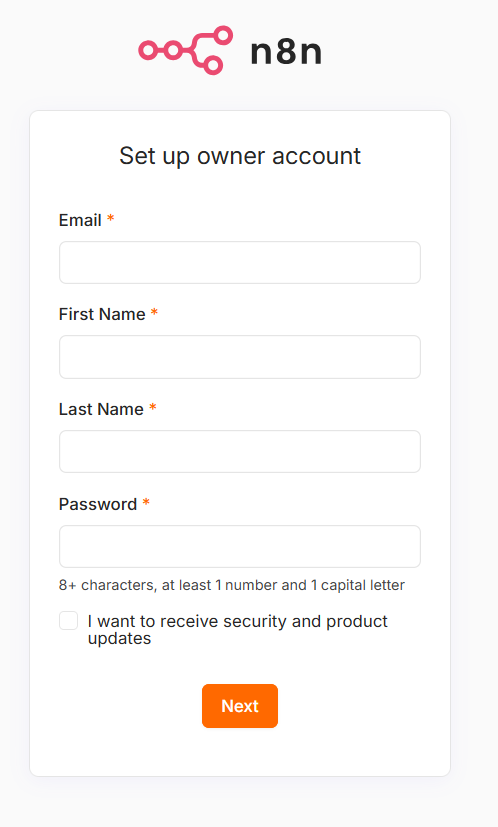
I’d recommend grabbing the free license key on first login, since it unlocks a handful of useful features at no cost.
At this point, you’ve deployed a production-ready, reverse-proxied, and properly secured n8n instance — running entirely on infrastructure you control.
Updating n8n
Since our docker-compose.yml points at image: docker.n8n.io/n8nio/n8n:latest, keeping n8n current is just a matter of pulling the latest image and recreating the container. From /opt/docker-data/n8n/, run:
docker compose down
docker compose pull
docker compose up -d
This pulls the newest n8n image and recreates the container with it, while the workflows, credentials, and settings stay untouched since they live in the /opt/docker-data/n8n/data volume, not inside the container itself.
After you confirm everything is working run docker image prune to remove all dangling/unused images.
Backups with Restic and Cloudflare R2
To protect the n8n data on your VPS, use Restic
to back up the host directory that contains your Docker data: /opt/docker-data. Restic works well here because it runs directly on the host, can read your bind-mounted data without extra container plumbing, and is easy to automate with cron.
Cloudflare R2 is a good destination because it uses S3-compatible storage and avoids egress fees, which makes it a practical offsite backup target. Moreover, the free monthly usage of 10GB for the standard storage is very generous for the configuration.
Install Restic
sudo apt update
sudo apt install -y restic
Create an R2 bucket
In Cloudflare R2, create a bucket for backups. Then, from R2 Object Storage page navigate to Account Details and click on Manage API tokens. Create an API token with the Object Read & Write Permissions and note these values:
- Account ID
- Bucket name
- Access Key ID
- Secret Access Key
Configure Restic
Create an environment file to store the backup settings:
sudo nano /root/.restic-r2.env
export RESTIC_REPOSITORY="s3:https://<ACCOUNT_ID>.r2.cloudflarestorage.com/<BUCKET_NAME>"
export RESTIC_PASSWORD="use-a-strong-restic-password"
export AWS_ACCESS_KEY_ID="your-r2-access-key-id"
export AWS_SECRET_ACCESS_KEY="your-r2-secret-access-key"
export RESTIC_CACHE_DIR="/root/.cache/restic"
Load it once to initialize the repository:
sudo -i
source /root/.restic-r2.env
restic init
Run your first backup
restic backup /opt/docker-data
Automate backups
Create a backup script:
sudo nano /usr/local/bin/restic-backup.sh
#!/usr/bin/env bash
set -euo pipefail

source /root/.restic-r2.env

restic backup /opt/docker-data
restic forget --keep-daily 7 --keep-weekly 4 --keep-monthly 6 --prune
It loads the backup settings, backs up docker-data data, then cleans up old snapshots based on your retention rules.
Make it executable:
sudo chmod +x /usr/local/bin/restic-backup.sh
Then add a cron job:
sudo crontab -e
Nigh backup at 2:15 AM:
15 2 * * * /usr/local/bin/restic-backup.sh >/var/log/restic-backup.log 2>&1
It runs every day at 2:15 AM /usr/local/bin/restic-backup.sh and sends all output to /var/log/restic-backup.log. To review the logs you can check it by running cat /var/log/restic-backup.log
Restore a backup
If you ever need to restore, list all backups (snapshots) already stored in the repository first:
sudo -i
source /root/.restic-r2.env
restic snapshots
Or
sudo bash -c 'source /root/.restic-r2.env && restic snapshots'
To shows repository usage, number of snapshots, total data, and deduped size:
sudo bash -c 'source /root/.restic-r2.env && restic stats'
Then restore the latest snapshot:
sudo bash -c 'source /root/.restic-r2.env && restic restore latest --target /tmp/restic-restore'
If you only want to restore the n8n data, copy it back from the restore directory into /opt/docker-data/n8n after stopping the containers.
Closing
With Docker, Caddy, n8n, and Restic in place, you now have a clean self-hosted setup that’s secured, easy to access, and protected with offsite backups. The result is a small but solid VPS stack that’s ready for real use.